
A privacy filter can make your display look darker because it limits the light reaching your eyes and narrows the viewing angle. A phone privacy screen protector reduces side-angle visibility, but its effect on brightness and clarity depends on the filter and how you use your phone. The aim is to make screen viewing more private without obscuring the content you need to see.
That trade-off is real: a darker display can be frustrating, especially outdoors or when you need to see fine details. Fit matters, too. A protector designed for your exact phone model is more likely to align with the display and front-facing components.
Here, you’ll learn how privacy filters affect brightness and display quality, whether they work on Android phones, and what to look for in a model-specific iPhone protector. We’ll cover viewing angles, fit, and practical selection points so you can protect what’s on your screen while keeping it comfortable to use.
Key Takeaways
- Expect a privacy filter to affect the view from the front as well as from the sides; weigh privacy against brightness and detail clarity.
- Use careful screen preparation and alignment during installation, and remove the protector slowly to reduce the risk of damaging it or the display.
- Micro-louver filters narrow the viewing angle by limiting light from off-center directions, so screen visibility changes with your position.
- Choose a protector made for your exact Android or iPhone model to match the display and avoid covering the camera, speaker, or sensors.
- Compare privacy filters with standard protectors by deciding whether side-angle privacy or an unobstructed view matters more for your daily use.
Will a privacy screen protector make my screen display look darker?
Yes, a privacy filter can make your phone display look darker from the front. Its filtering layer blocks some light and restricts the view from the sides. The difference may be more noticeable outdoors, on a bright white screen, or when your brightness is low. Raising brightness can make content easier to see, but it won’t remove the filter’s effect on light and clarity. Compare the display at your usual brightness before deciding whether privacy matters more to you than the brightest possible view.
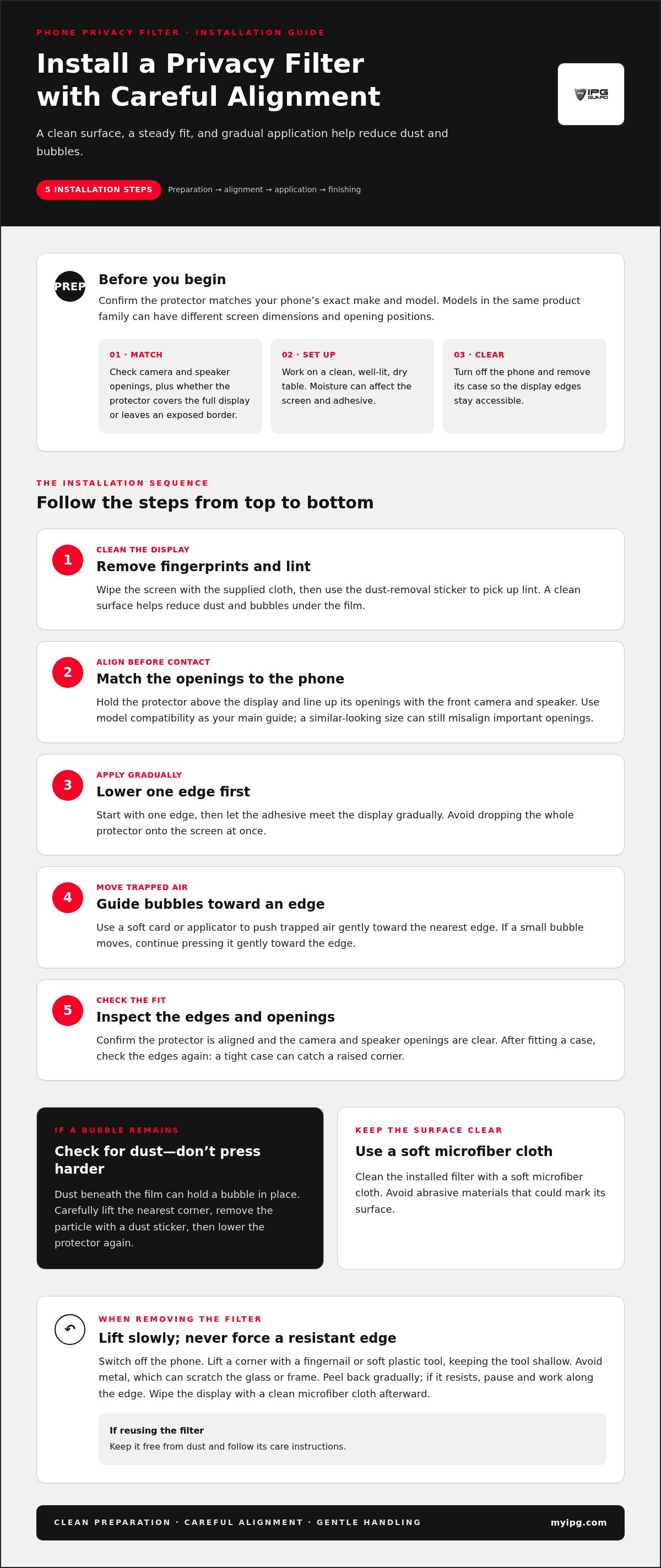
Check the fit before installation. Start with your device’s exact make and model, since phones in the same product family can have different screen dimensions, camera positions, or speaker openings. Check whether the protector covers the full display or leaves an exposed border. If measuring a bare screen, measure the visible display area and note the front camera and speaker positions. Use model compatibility as your main guide: a similar-looking size can still misalign important openings.
Prepare a clean, well-lit surface before installing the filter. A bathroom after a shower may seem convenient, but moisture can affect the screen and adhesive. Instead, work on a dry table and follow the product’s installation instructions. These steps help reduce dust and bubbles:
- Turn off the phone and remove its case, so the edges stay accessible.
- Clean the display with the supplied cloth, then remove lint with a dust-removal sticker.
- Hold the protector above the screen and line up its openings with the camera and speaker.
- Lower one edge first, then let the adhesive meet the display gradually.
- Push trapped air toward the nearest edge with a soft card or applicator.
A small bubble may move toward an edge if you press it gently. Dust beneath the film can hold a bubble in place, so don’t press harder. Carefully lift the nearest corner, use a dust sticker to remove the particle, then lower the protector again. Some privacy filters are designed for easy installation with minimal bubbles and lasting adhesion, but clean preparation and careful alignment still matter.
To remove a filter, switch off the phone and slowly lift a corner with a fingernail or soft plastic tool. Keep the tool shallow and avoid metal, which can scratch the glass or frame. Peel the protector back gradually rather than pulling sharply. If it resists, pause and work along the edge instead of forcing it. Wipe the display with a clean microfiber cloth afterward. If you plan to reuse the filter, keep it free from dust and follow its care instructions.
Clean the installed filter with a soft microfiber cloth. Avoid abrasive materials that could mark its surface. Check the edges after fitting a case, since pressure from a tight case can catch a raised corner. Careful measuring and clean installation help preserve a clear central view while limiting side-angle visibility.
Effects on screen brightness and display quality
A privacy filter changes the light reaching your eyes and can affect how screen details appear. Compare brightness, color, and text clarity using the same phone settings before you decide.
Light Transmission and Brightness
Light transmission describes how much display light passes through the filter to you. A filter that blocks more light can make a phone seem dimmer at the same brightness setting. If the packaging gives a transmission figure, use it to compare filters, but pair that figure with a real viewing test. Open a white email, then a dark map, and check both at your usual brightness.
For a fair comparison, use the same screen and settings with and without the protector. Stand directly in front of the display, then view it from your usual angle. Check text outdoors and under indoor lighting. Increasing brightness may improve visibility, but it won’t restore the light filtered by the protector. Choose the balance that suits your everyday use.
Display Clarity
Brightness is only one part of the viewing experience. A privacy layer can affect perceived contrast, color, and fine detail, especially when you read small text or inspect a photograph. Open a high-resolution image and examine fine lines, then read a message with small type. If the image looks muted or letters are harder to distinguish, those changes matter more than how a bright home screen looks.
Check clarity from your normal hand position, not only with the phone flat on a table. A filter may look clear head-on but appear darker when the screen tilts. Compare a video, a photo, and small interface labels. These examples can reveal different issues: skin tones show color shifts, while map labels show whether thin text remains legible.
Use a simple test before settling on a filter. Temporarily turn off automatic brightness, choose a comfortable setting, and view the same content on the bare display and through the protector. Repeat in a bright room and a dimmer one. This separates the filter’s effect from changes made by the phone’s automatic display controls.
- For reading: Check small text on an email or document.
- For photos: Look for changes to color and shadow detail.
- For outdoor use: Test a map or message in bright surroundings.
- For shared spaces: Decide whether privacy from prying eyes outweighs maximum brightness.
Don’t judge a filter from a promotional image or a single bright screen. Check the display you rely on most, at your normal viewing angle and brightness. A clear, direct comparison helps you decide whether the privacy benefit fits your routine. If you’re weighing those trade-offs, compare privacy-filter choices with your display needs in mind.
Do privacy screen protectors work on Android phones?
Yes. A privacy filter can reduce screen visibility from side angles on Android phones, including Samsung Galaxy and Google Pixel devices. Choose a protector cut for your exact model, since screen dimensions and front-facing components vary.
Micro-Louver Viewing Angles
Micro-louver filters use fine directional layers to let more display light travel toward the person facing the screen. From the side, those layers restrict light reaching another viewer, making the image harder to see. The filter doesn’t switch privacy on through Android settings. It works through its physical structure, so your viewing position and screen orientation affect what remains visible.
Test the filter as you use your phone. Hold a Galaxy or Pixel upright, then tilt it slightly and view it from either side. Look at a message or map label, not just a bright home screen. The display should remain readable from your position while becoming less clear off-center. A privacy filter narrows viewing angles; it doesn’t make the screen invisible to everyone nearby.
Privacy Tint from Side Angles
Some filters make the view darker outside the direct line of sight. That tint can limit casual side viewing on a bus, in a waiting area, or beside a coworker. Compare the effect from both sides, since a filter’s orientation can influence how it works. Keep the device centered at your usual reading distance while testing a message or document.
Android phones differ in screen shape, camera placement, and speaker position. Match the protector to the exact model name shown in Settings or on the device packaging. A protector made for a different Galaxy model may not align with the display, even if the phones look similar. Check the product’s model compatibility and cut-outs before installation.
Use these steps to judge whether the privacy effect suits your routine:
- Check your main position: Read a message while holding the phone at your usual angle.
- Test a side view: Ask someone beside you to view the same screen from their seat.
- Rotate the phone: Compare portrait and landscape use with a video or map.
- Review fit: Confirm the filter aligns with the camera, speaker, and screen edges.
Touch response and on-screen visibility are separate considerations. Open an Android keyboard and type a short message, then scroll through a webpage. Notice how the filter affects your view during normal use, not just during a quick glance. Read the protector’s care and warranty terms before installation, and keep its packaging for reference. A model-matched filter provides the intended coverage without relying on a universal size.
Privacy filters compared with standard screen protectors
A privacy filter adds control over side-angle visibility; a standard screen protector prioritizes an unobstructed view. A privacy filter is designed to limit casual viewing, not to improve eye health. Fingerprint performance depends on the phone’s sensor and the protector’s construction, so test enrollment and unlocking after installation.
The practical difference becomes clear in shared spaces. On a train, a privacy filter can make a message harder to see from the next seat, while a clear protector keeps the display more openly visible. Neither type makes screen content completely private. Someone directly in front of the phone can still see what’s displayed.
Privacy protectors are available as tempered glass or flexible plastic, and can provide scratch and impact protection. Standard protectors also vary in material and protective design, so compare the specific product rather than assuming every protector offers the same coverage. Check the listed device compatibility, display coverage, and cut-outs for the camera and speaker before choosing.
Use everyday tasks to decide which trade-off suits you. Read a work message in a public waiting area, view a photo in a shared room, then check a map while walking. A privacy filter can make side viewing less clear, but may also make the display look darker from the front. A standard protector preserves a more direct view but doesn’t provide the same side-angle privacy.
- Choose a privacy filter if you often open messages or documents in shared spaces.
- Choose a standard protector if direct visibility and an unfiltered view matter most.
- Compare materials by checking whether the protector is tempered glass or flexible plastic.
- Match the device by checking the exact phone model and its front components.
For an in-screen fingerprint sensor, confirm that the protector is designed for your phone model and sensor type. After fitting it, register a fingerprint or test one that’s already enrolled. If recognition changes, clean the sensor area, check for bubbles or misalignment, and follow the phone maker’s setup instructions. Don’t assume every privacy filter works the same way with every Android or iPhone sensor.
Eye comfort is personal. Compare the phone’s display with and without the filter during a familiar task, such as reading small text or viewing a photo. If you find yourself increasing brightness or squinting to see text, factor that into your choice. Weigh the privacy function against the clarity you need for daily use.
Both options can help shield the display surface, but they serve different priorities. In a private room, a standard protector may suit someone who wants a clear view. In busy spaces, a privacy filter adds visual discretion. Weigh side-angle privacy, display clarity, material, device fit, and fingerprint access together.
Choosing a model-specific iPhone privacy protector
A privacy protector fits an iPhone or Samsung Galaxy only when its compatibility label matches your exact phone model. Match the full model name, not just the Apple or Samsung brand, because devices in one product family can have different screen shapes and component positions.
Find your iPhone’s model name in Settings, then compare it with the protector’s packaging or product description. Do the same for a Galaxy phone. Don’t choose by screen size or appearance alone. A protector for a similar-looking device may leave an edge exposed or misalign the camera, speaker, or sensors.
Model-specific fit matters especially for privacy filters. The filter needs to cover the intended viewing area while keeping its openings aligned with front-facing components. Privacy protectors are designed with camera, speaker, and sensor cut-outs that should not obstruct those components. Check the cut-out layout against your phone before removing any backing or starting installation.
Use this compatibility check before you buy or install:
- Find the complete device name in Settings or on the phone’s original packaging.
- Compare that name with the protector’s stated compatible model.
- Review the cut-outs and screen coverage against the phone’s front layout.
- Check whether the protector’s edges leave room for your case.
For example, an iPhone and a Galaxy may both have a front camera near the top edge, but their positions and surrounding openings differ. Even two phones from the same manufacturer can have different display dimensions or speaker placement. The exact model label is more reliable than a broad description such as “fits iPhone” or “fits Galaxy.”
Before installation, place the protector over the screen without exposing its adhesive. Compare the top edge, corners, and component openings. If a camera or speaker opening sits off-center, stop and recheck the model match. A misaligned filter can interfere with the intended coverage or leave part of the display uncovered.
After fitting, test the phone’s front camera, speaker, and any screen-based sensor you use. Open the camera app, make a call, and check that the display responds normally. Then view the screen straight on and from either side. This checks both component access and the privacy effect from a real viewing position.
Choose a privacy protector labeled for your exact iPhone or Samsung Galaxy model. A protector for a similar-looking phone, or one labeled only “fits iPhone” or “fits Galaxy,” may not align with the screen, camera, speaker, or sensors.
My IPG: IPG Phone camera lens protector
The IPG Phone camera lens protector is another option for protecting your camera lens. A privacy filter addresses who can view your display; a camera lens protector safeguards a different part of your phone. Keep those needs distinct when choosing protection for your device.
My IPG also offers IPG iPhone screen protector and IPG Samsung screen protector options. Match a screen protector to your phone model, and consider camera lens protection separately if you want to protect the camera area. Each product should fit the part of your device you want to safeguard.
Explore phone protection options at My IPG, including screen and camera lens protectors, and choose the product that matches your device.
Make your next screen choice with confidence
Let your daily routine guide the final decision. Think about where you use your phone, what you view most often, and how much side-angle privacy matters in those moments. Then choose a phone privacy screen protector that supports your priorities without making everyday viewing uncomfortable.
My IPG offers the IPG Phone camera lens protector, IPG iPhone screen protector, and IPG Samsung screen protector. If you’re considering privacy protection, start by identifying your phone model and deciding what you need from the screen. That makes it easier to choose a practical option for your device.
Contact My IPG about phone privacy and explore the protection options for your device. Choose with care, protect what matters, and keep your phone ready for the way you use it.
Frequently Asked Questions
Do privacy protectors affect touch sensitivity?
A correctly fitted privacy protector should still allow normal screen interaction, but fit and material can affect how the display responds. After installation, test typing, scrolling, and edge gestures on your phone. If taps miss near the borders, check for lifted edges, trapped debris, or a protector made for another model. Keep the screen clean, since fingerprints and residue can also make taps feel less precise.
Where is a privacy screen helpful?
A privacy screen is useful when you view personal messages, work documents, or payment details in shared spaces. Try it on a commuter train, in a waiting room, or at a shared desk. It can reduce casual side viewing, but it doesn’t hide content from someone directly in front of your phone. For sensitive information, combine the filter with locking your screen when you step away.
What is a phone privacy screen protector and how does it work?
A phone privacy screen protector is designed to restrict visibility from off-center angles. Its filtering layer directs more screen light toward the person viewing from the front and limits the view from the sides. The effect changes with your position and the phone’s tilt. For example, someone beside you may see a darker display than someone looking straight at it.
How effective are privacy screen protectors at blocking side-angle viewing?
Privacy protectors reduce side-angle visibility, but they don’t make a display completely invisible from every position. The result depends on the filter design, viewing angle, screen brightness, and distance. Test the protector with a message or document while someone views from beside you, then shift the phone slightly. This practical check shows whether the filter suits your seating, commuting, or desk setup.
Privacy screen protector vs. regular tempered-glass screen protector: what are the differences?
A privacy protector is designed to limit side viewing; a regular clear tempered-glass protector prioritizes an open view of the display. Both may protect against scratches or impacts, depending on their construction. Privacy filters can be made from tempered glass or flexible plastic. Compare the listed material, device fit, and viewing effect, then choose based on whether visual discretion or an unobstructed display matters more.
Do privacy screen protectors reduce screen brightness or affect touch sensitivity and Face ID?
A privacy filter can make the display appear dimmer because it limits the light reaching the viewer. Touch response and Face ID depend on the protector’s fit and compatibility with the specific phone. Choose a model-matched protector, keep the front camera and sensor area unobstructed, then test typing and Face ID after installation. If recognition changes, inspect the alignment and follow the phone’s setup guidance.
How do I install a phone privacy screen protector without bubbles or dust?
Prepare a dry, clean surface and turn off your phone before installation. Remove the case, clean the screen with a microfiber cloth, and lift any remaining lint with a dust-removal sticker. Align the protector with the screen edges and component openings before lowering it. Let the adhesive settle gradually, then guide small air bubbles toward an edge with a soft applicator. Avoid pressing debris into the display.
How do I remove and replace a privacy screen protector?
Turn off the phone, then gently lift one corner of the protector with a fingernail or soft plastic tool. Peel it back slowly, keeping the tool away from the display surface. Don’t use a metal blade or pull sharply. Clean the exposed screen with a microfiber cloth before installing a replacement. Check the new protector’s model compatibility and openings first to keep the camera, speaker, and sensors correctly aligned.