
A screen protector can take daily wear, but it can’t turn a touchscreen into a sealed industrial computer. Protecting touch screens in a factory starts with choosing a protector compatible with the display. It adds a surface barrier against scratches, dust, and fingerprints, while the touchscreen’s existing sensor handles input. It won’t make a non-touch display respond to touch or protect the screen from blunt force.
A protector can help preserve a clear, responsive display through everyday use when it matches the touchscreen and its working conditions. A film or glass layer can reduce surface abrasion, but moisture, cleaning chemicals, and gloved operation can affect how well the overall setup performs.
This guide explains how protectors work with touchscreens, what they can and can’t guard against, and how to prepare and apply one while avoiding bubbles. It also covers why dust and fingerprints matter, what to consider in wet or high-wear areas, and when a protector is only one part of a broader screen-protection strategy.
Key Takeaways
- Match the protector to the touchscreen’s sensing technology so added surface protection doesn’t interfere with input.
- Assess the real factory hazards, including abrasive dust, moisture, cleaning agents, and the gloves operators use.
- Prepare the display carefully before installation to reduce trapped dust and bubbles.
- Choose a protector based on the screen’s surface, fit, and working conditions, not scratch resistance alone.
- Keep in mind that a screen protector is only one layer of protection; the enclosure and installation also matter.
How Do Touchscreens Work With a Screen Protector?
A screen protector adds a sacrificial layer over a display; it doesn’t create touch capability or upgrade the screen’s enclosure. Tempered glass protectors commonly carry a 9H hardness rating, while full-adhesive plastic overlays may be rated 3H. These ratings help compare surface scratch resistance, but they don’t establish protection from heat, corrosive materials, or blunt force. For factory applications, match the protector’s documented resistance to the actual hazard instead of treating “glass” or “industrial” as proof of chemical or temperature compatibility.
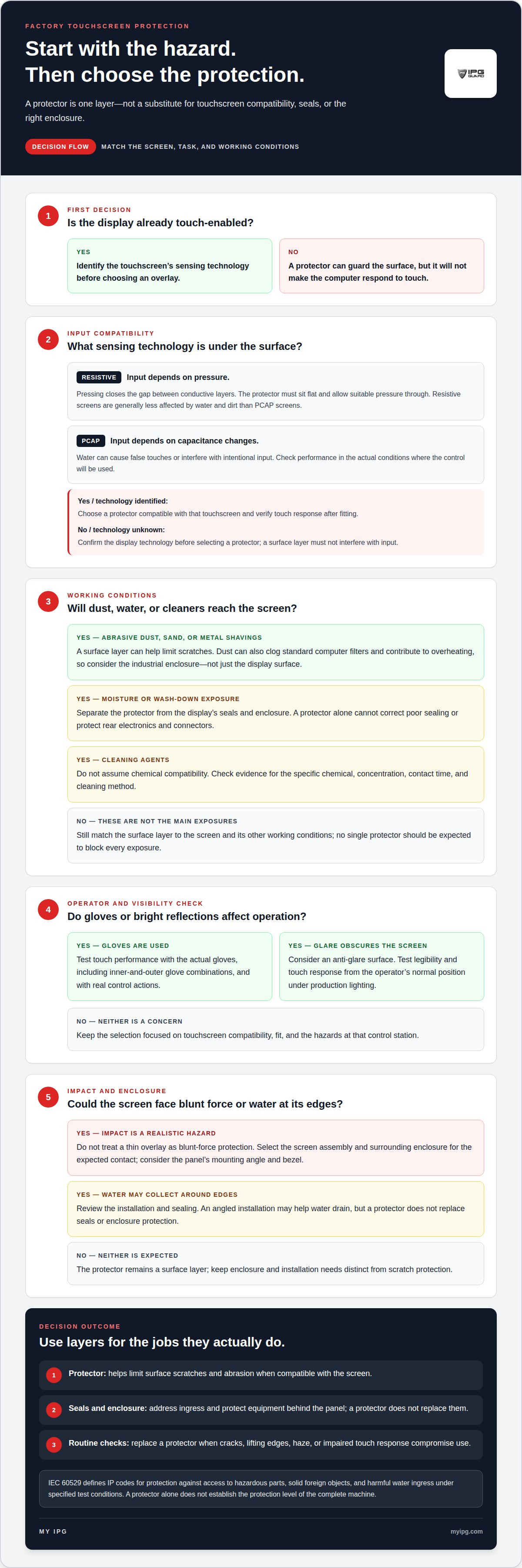
The touchscreen beneath the protector determines how input works. A standard resistive screen has two conductive, ITO-coated layers separated by a small air gap. Pressing the display closes that gap, allowing the screen to register a gloved hand, bare finger, stylus, or another tool applying suitable pressure. A protector must sit flat and allow the necessary pressure to reach the sensing layers. An overlay placed over a non-touch display can protect its surface, but it won’t make the computer respond to touch.
Glass-Film-Glass, or GFG, resistive construction adds a protective glass surface above a plastic sensing layer. In the described design, a uniform, hardened borosilicate top layer is 0.2 mm thick and optically bonded to the thin film. Other GFG constructions use borosilicate glass 0.1-0.2 mm thick. This bonded layer can shield the plastic beneath from direct surface contact while preserving pressure-based input. It’s part of the touchscreen assembly, not a removable protector, and it doesn’t establish resistance to every chemical or temperature exposure.
Removable protectors serve different needs. Tempered glass creates a rigid surface barrier against everyday scratches; plastic film is thinner and more flexible. A full-adhesive overlay is 0.120 mm thick, with stated 94% light transmission and less than 2.5% light distortion. Privacy protectors address viewing-angle privacy, not factory sealing. None should be assumed to withstand corrosive cleaners without compatibility evidence for the chemical, concentration, contact time, and cleaning method.
Finally, separate the protector from the cover glass, seals, and enclosure. The display’s cover glass is its exposed structural surface; perimeter seals help control ingress, while the enclosure body protects electronics behind the panel. IEC 60529 defines the IP code for protection against access to hazardous parts, solid foreign objects, and harmful water ingress under specified test conditions. A protector doesn’t replace a seal or prove the complete machine is protected. Inspect it during routine equipment checks, and replace it when cracks, lifting edges, haze, or impaired touch response compromise use. The right interval depends on visible wear and actual performance, not a universal calendar schedule.
Screen protection in high-risk work environments
Factory controls face different exposures from office displays, including wash-down moisture and airborne dust. Choose protection based on the touchscreen technology, production task, and enclosure. To protect touch screens in a factory, start by identifying the hazards at each control station.
Protection in Harsh Industrial Environments
A touchscreen in a harsh environment must remain readable and responsive despite nearby hazards. In production areas, dust can clog standard computer filters and contribute to overheating; moisture can damage standard computers in wash-down locations. Industrial computer enclosures help protect equipment from dust and moisture while supporting a stable internal temperature.
Touch controls can also affect the work area. An industrial PC touchscreen can eliminate keyboard and mouse wiring that might otherwise create trip hazards. The display still needs protection suited to its location. A wall-mounted panel beside a machine, for example, may face different splash, impact, and glare exposure than a control near a wash-down station.
Bright light makes screen visibility especially important. An anti-glare surface can reduce reflections that obscure instructions and production data, but it must preserve legibility and touch response. Choose a finish based on the actual lighting and viewing angle, then test the display from the operator’s normal position under production lighting.
Choosing Protection Against Dust, Water, Chemicals, and Impacts
Match the protector’s material and fit to the specific hazard rather than expecting one layer to block every exposure. For abrasive dust, sand, or metal shavings, a surface layer can help limit scratches. For water and cleaning agents, distinguish the protector from the display’s seals and enclosure. Chemical resistance depends on the cleaner and how it contacts the screen.
PCAP touchscreens detect changes in capacitance, so water can cause false touches or interfere with intentional inputs. Resistive screens register pressure and are generally less affected by water and dirt. In either case, test touch performance with the actual gloves operators wear, including inner-and-outer glove combinations and real control actions. A protector that looks clear but disrupts input can slow or confuse operation.
For impact risks, don’t treat a thin overlay as blunt-force protection. Select the screen assembly and surrounding enclosure for the expected contact, and consider the panel’s mounting angle and bezel. Water can collect around edges, while an angled installation may help it drain. A protector alone cannot correct poor sealing or protect rear electronics and connectors.
For enclosure ingress ratings, IEC 60529 defines IP codes for protection against access to hazardous parts, solid foreign objects, and harmful water ingress under specified test conditions. An IP rating doesn’t establish wet-touch reliability, chemical compatibility, or suitability for every wash-down procedure. It also isn’t a general OSHA certification for a protector. Follow equipment cleaning instructions and distinguish wiping from direct spray or high-pressure washing.
In the United States, industrial touchscreen protector costs depend on display dimensions, material, fit, and required chemical or surface resistance. These factors also shape replacement planning. When protecting touch screens in a factory, assess wear and touch performance alongside working conditions rather than assuming every installation has the same cost or service interval.
Installation and bubble prevention
A clean surface, accurate alignment, and steady application prevent most installation defects. Set aside uninterrupted time for installation, then avoid heavy use until the adhesive has cured.
Start by identifying the display’s active area, bezel, and any openings. Industrial touchscreens may sit in wall panels or on machine sides, so access and working angles vary. Follow the equipment maker’s shutdown instructions before cleaning or applying an overlay. Avoid touching the prepared screen, since skin oils and lint can weaken adhesive contact or remain visible beneath a clear protector.
- Prepare the work area. Choose a low-dust time and clear loose materials from around the device. Dust trapped during installation can create a raised spot that looks like an air bubble and may affect touch input.
- Clean the display. Use a lint-free cloth and a cleaner compatible with the screen’s surface. Remove fingerprints, dust, and residue, then let the surface dry fully. Don’t apply a protector over moisture or cleaning streaks.
- Check the fit before exposing adhesive. Hold the protector over the display and align its edges with the visible screen area. Confirm that it won’t cover controls, sensors, or bezel features. Don’t cut or resize an overlay unless its instructions explicitly allow it.
- Apply from one edge. Expose only the starting edge of the adhesive, align it carefully, and lower the protector gradually. Use a clean, soft applicator to guide contact outward, rather than pressing dust or air toward the center.
- Inspect the result. Look across the display under bright light. Small air pockets may move toward an edge with gentle pressure; particles trapped under the adhesive won’t disappear through pressing. Lift or reposition only as the product instructions permit.
Keep the panel steady during application. A sloped touchscreen can let the protector shift before its adhesive catches, while a tight bezel can make alignment more difficult. If the protector has a release liner, peel it gradually instead of removing it all at once. This limits exposed adhesive and helps prevent airborne dust from settling on it.
After installation, test the device across the display. Check touch response near the edges and center, then confirm that icons and instructions remain readable at the operating brightness. Bubbles, wrinkles, or lifted edges can catch debris and reduce visibility. Don’t reuse an overlay after removal; taking it off reduces adhesive effectiveness. Allow the adhesive to cure for 24 hours before heavy use, as recommended for the overlay installation guidance. Resume operation only after the protector is stable and the display responds normally.
Screen protection from dust, scratches, and fingerprints
Dust, abrasive particles, and repeated finger contact can gradually wear a touchscreen surface. A protector adds a replaceable layer that helps keep marks and grime away from the display beneath. It doesn’t eliminate cleaning or prevent every kind of damage. Choose the coating and material based on the screen’s actual use, such as gloved operation, gritty hands, or frequent wiping during a production shift.
Hardness ratings offer one way to compare scratch resistance. Quality hard coatings for touch monitors are reported across ratings from 6H to 9H, and a 9H scratch-resistance rating is recommended for industrial manufacturing environments. A full-adhesive touchscreen overlay has a stated 3H hardness rating. These values describe surface resistance, not a promise against impacts, chemical exposure, or every abrasive material.
Plastic film and tempered glass behave differently in daily use. Plastic film is flexible and forms a thin surface barrier; tempered glass provides a rigid surface that can take scratches before the display does. Neither material automatically prevents fingerprints. A coating may make smudges easier to wipe away, but performance depends on the protector’s stated features and the cleaning method.
Fingerprints affect more than appearance. Greasy marks can obscure small instructions, status icons, or readings when an operator views the screen under bright light. Dust trapped beneath a protector can create a visible speck or raised area. Clean the surface before application, then inspect the display for trapped particles and lifted edges.
Use a cleaning routine that protects both the coating and touch response:
- Wipe with a clean, lint-free cloth to lift loose dust without grinding particles into the surface.
- Use a mild glass cleaner when it’s compatible with the overlay, and avoid abrasive cleaners that can wear the coating.
- Remove fingerprints with light, even strokes; don’t scrape dried residue with a hard tool.
- Inspect for haze, scratches, cracks, and lifting edges. Replace a protector when damage interferes with visibility or operation.
A replacement protector is a surface-maintenance part, not a repair for a damaged touchscreen. If scratches remain visible after removing the protector, or touch input fails across part of the display, the underlying screen may need repair. Keep the distinction clear: a protector can take routine wear, while the machine’s display and enclosure remain responsible for reliable operation.
In a factory, pair screen inspection with equipment cleaning rather than relying on appearance alone. A screen may look clear while dust collects at its edges, or fingerprints may obscure instructions at a critical control. Regular wiping with a lint-free cloth maintains visibility; replacing a worn overlay restores a clean contact surface but does not replace screen repair.
Which screen protectors are compatible with industrial touchscreens?
Compatibility depends on the touchscreen’s sensing method, exposed surface, and panel dimensions. A protector must fit the active display without blocking controls, sensors, or the bezel. A film that fits one industrial computer may not suit another, even if both panels look similar. Start with the equipment maker’s screen specifications and the protector’s stated compatibility, then assess touch response after installation.
Resistive screens register pressure through their sensing layers, while projected-capacitive, or PCAP, screens detect changes in capacitance. Some touchscreen overlays are described as compatible with resistive, AccuTouch, and projected-capacitive displays, but that doesn’t mean every overlay works with every model. Screen size, shape, surface finish, edge clearance, and adhesive design all affect fit and operation.
For PCAP controls, check that the installed layer preserves reliable input across the working area. Test the actions operators perform, such as tapping small interface buttons or dragging a control. On a resistive panel, check that normal pressure still registers through the protector. Include the gloves used on the production floor; a bare-finger test alone does not reflect gloved operation.
Choose material based on the hazard and touchscreen design. Tempered glass provides a rigid protective surface, while plastic film offers a thinner, flexible layer. A privacy protector can narrow side viewing, but that feature doesn’t establish compatibility with an industrial panel. Likewise, a scratch-resistance rating alone says nothing about touch sensing, chemical tolerance, or enclosure sealing.
Use this compatibility check before committing to a protector:
- Identify the sensing type. Confirm whether the panel is resistive, AccuTouch, or PCAP.
- Match the physical fit. Compare the display’s visible area, corners, bezel, and any sensors with the protector’s shape.
- Consider the surface. A glossy or matte finish can affect visibility and fit; select a protector designed for that surface.
- Test real operation. Check touch response with the operators’ gloves and interface actions, then assess readability under work-area lighting.
Don’t resize a precision-cut overlay unless its instructions permit it. Trimming can leave edges exposed or interfere with the bezel, and an improvised fit may lift during cleaning. An overlay also cannot compensate for a damaged panel, a poor seal, or incompatible cleaning chemicals. Keep these functions separate when specifying protection for a machine touchscreen.
For personal devices rather than factory control panels, IPG iPhone screen protectors are a device-specific option. Match any protector to the intended screen first; industrial-panel compatibility requires the correct panel fit and sensing technology.
My IPG
My IPG helps protect the personal devices used during the workday with screen and camera lens protectors for compatible phones. If your factory relies on a phone for communication, photos, or field records, choose a protector made for that device rather than assuming a phone product fits an industrial control panel.
Options include the IPG iPhone screen protector, IPG Samsung screen protector, IPG Phone camera lens protector, and IPG Camera Lens Protector for iPhone Samsung Tempered glass. Match the protector to the device and the area that needs protection. For factory touchscreen panels, use the compatibility, cleaning, and enclosure principles in this guide before choosing a solution.
Contact My IPG to discuss protection for your device.
Build Protection Into the Next Shift
Make screen care part of equipment planning instead of waiting for visible wear. Assign responsibility for routine inspection, document damage that affects visibility or touch response, and tie replacement decisions to the machine’s operating conditions. This makes protecting touch screens in a factory a repeatable maintenance practice rather than a one-time installation task.
Keep device types distinct. A factory control-panel display needs a protector matched to its screen technology, fit, and environment. My IPG offers the IPG Phone camera lens protector, IPG iPhone screen protector, and IPG Samsung screen protector for compatible personal devices. These products protect phones, not industrial control panels.
If you’re choosing protection for a personal phone used around work, contact My IPG about screen protection. Take the next step with a clear match between the device and the protection it needs.
Frequently Asked Questions
What hazards can damage touch screens in factory environments?
Factory screens can be exposed to abrasive dust, sand, metal shavings, moisture, cleaning chemicals, and impacts. Particles carried on a worker’s gloves, for example, can scratch a frequently used control area, while liquid can interfere with PCAP touch input. Dust can also clog standard computer filters and contribute to overheating. Consider both direct screen contact and hazards affecting the computer enclosure.
How do tempered glass and film screen protectors compare for factory use?
Tempered glass is rigid, while plastic film is thinner and more flexible. A 9H rating is commonly associated with tempered-glass protectors, and a full-adhesive overlay has a stated 3H hardness rating. Those figures describe scratch resistance, not impact, chemical, or heat protection. For a curved or tightly framed panel, physical fit and edge coverage may matter as much as the protector material.
Do screen protectors affect touchscreen sensitivity or glove operation?
They can if the added layer or its fit interferes with the screen’s sensing method. PCAP controls detect capacitance changes, while resistive controls respond to pressure. Test the installed protector with the glove combinations and interface actions operators actually use, such as selecting small on-screen controls. Check the edges and corners too, since a protector that lifts or sits unevenly can affect those areas.
How do you install and clean an industrial touchscreen screen protector?
Schedule installation when the machine can remain unused, then clean and dry the display before applying the protector in a low-dust area. Follow the protector’s application instructions and avoid touching its adhesive. After fitting, inspect the full perimeter and test normal operation. For routine cleaning, use a clean, lint-free cloth and a compatible mild glass cleaner; avoid abrasive cleaners that can damage the surface.