
When choosing a Snap-on diagnostic tool screen protector, start with the exact tool model, not just the brand. A protector that looks close may not align with the display, and a mismatch can leave part of the screen uncovered. Snap-on tools come in different platforms and models, so checking compatibility comes first.
It’s reasonable to want clear, dependable protection for a diagnostic tool you rely on. But choosing by brand name or screen size alone can lead to a mismatch. A protective film is also different from a replacement display window, so identify the part you need before shopping.
This 2026 buying guide explains how to identify your Snap-on model, check a listing for compatibility, and compare practical product details without guessing. My IPG sells Snap-on screen protectors, including an option listed for Snap-on Triton, Apollo, and Solus+. Use the complete tool name to determine whether a listing matches your device.
Key Takeaways
- Start with the complete Snap-on tool name and platform. The brand alone isn’t enough to establish fit.
- Choose a Snap-on diagnostic tool screen protector only when the listing identifies a match for your exact device.
- Compare listing details for fit, material, visibility, touch use, and application guidance before deciding.
- Know the difference between a protective layer placed over a display and a replacement display window.
- Robot-device protectors are specific to their named devices, such as Rux AI, Rabbit R1, Ruko 1088, and Vector, not Snap-on tools.
Why a Snap-on Diagnostic Tool Screen Protector Starts With the Exact Model
A diagnostic tool screen protector is a screen-matched layer intended to help guard the display while leaving the screen available for normal use. The key phrase is screen-matched. Snap-on diagnostic tools span different platforms and models, so a protector described only as “for Snap-on” doesn’t tell you which device it fits. A familiar platform name or similar-looking display is not enough to establish compatibility.
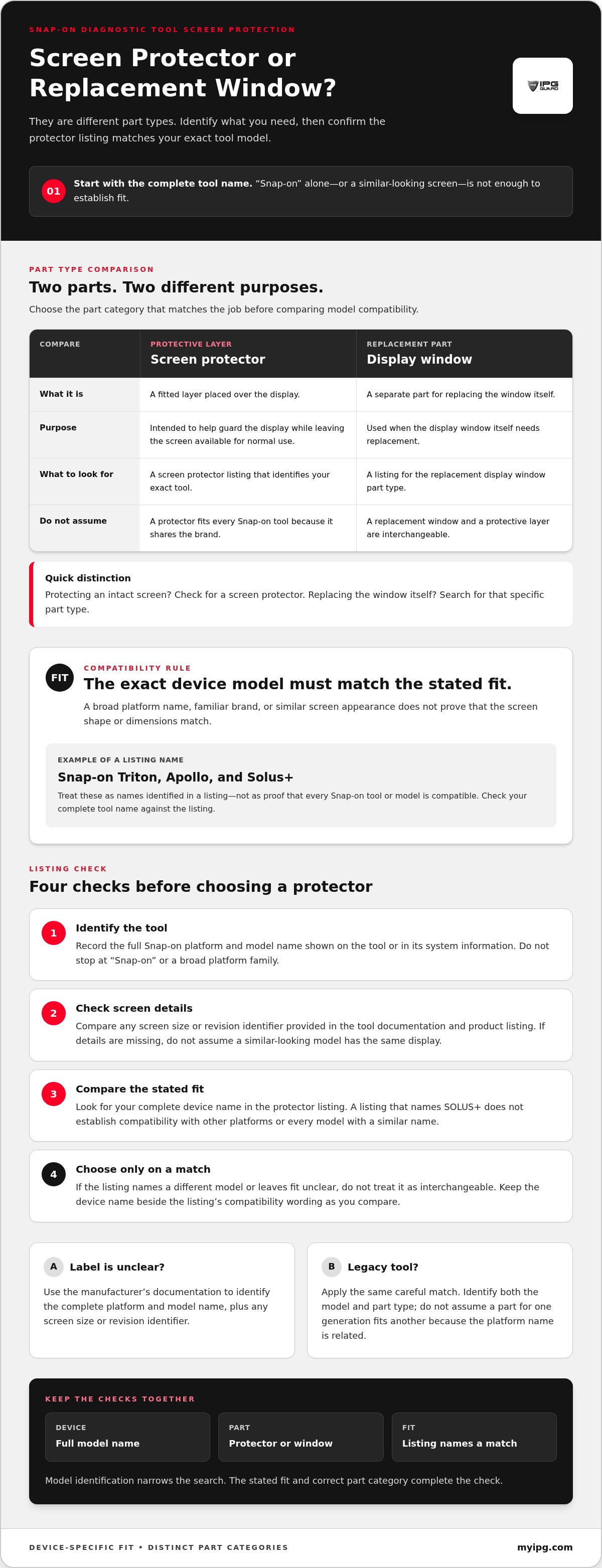
A screen protector is a fitted layer placed over a display; a replacement display window is a separate replacement part. They serve different purposes, so identify the exact part type before shopping.
Which Snap-on diagnostic tool details should you identify?
Start with the full platform and model name printed on the tool or shown in its system information. A platform name alone may cover multiple models. For example, a listing that names a SOLUS+ shouldn’t be treated as a match for every Snap-on diagnostic tool. Write down the complete name before comparing products.
Next, look for any screen revision or size identifier in the device label or manufacturer documentation. Display dimensions, screen outlines, and bezel shapes may differ between tools or revisions. Even a small mismatch can leave an edge uncovered or put the protector out of alignment with the usable display. Don’t estimate compatibility from appearance alone.
- Identify: Write down the full platform and model name.
- Compare: Note any screen size or revision identifier provided.
- Refer: Use the manufacturer’s documentation if the device label is unclear.
This gives you a precise basis for comparing listings. It also helps distinguish a model-specific match from a broad brand label that could describe several tools. When you compare products, keep the device name and the listing’s compatibility wording together rather than relying on memory.
Is a screen protector the same as a replacement display window?
No. A screen protector is an added layer intended to help guard the display. A replacement display window is a part for replacing the window itself. The names can sound similar, but the parts serve different purposes and shouldn’t be used interchangeably when ordering.
Snap-on’s official replacement-part reference lists screen protectors and display windows separately, reinforcing that they are distinct part categories. If you’re protecting an intact screen, look for a screen protector listing that identifies your tool. If you need a replacement window, search for that specific part type instead. Match the part category before comparing model information. That distinction helps prevent buying a protective layer when you need a replacement component, or the other way around.
For a Snap-on diagnostic tool screen protector, exact model identification is the first fit check, not a final detail. Carry the complete device name into the next step: evaluating what a listing says about compatibility and practical use.
How to Confirm a Snap-on Screen Protector Will Fit Your Tool
Use the product listing as a compatibility check, not just a description. Match the protector listing to the exact device model. A shared brand or similar platform name isn’t proof that two tools have the same screen shape or dimensions. Follow this sequence before selecting a protector.
A four-step compatibility check before buying
- Identify the tool. Record the full Snap-on platform and model name shown on the device or in its system information. Don’t stop at “Snap-on” or a broad platform family.
- Check screen details. Compare any screen size or revision identifier provided in the tool documentation and product listing. If either source gives no such detail, don’t assume that a similar-looking model has the same display.
- Compare the stated fit. Look for the complete device name in the protector listing. A listing that names SOLUS+, for example, doesn’t establish compatibility with other Snap-on platforms or every model with a similar name.
- Select only on a match. If the listing names a different model or leaves the fit unclear, don’t treat it as interchangeable. Keep the device name and listed compatibility together when making your choice.
The core rule is simple: the exact device model must match the protector’s stated fit. Similar platform names can refer to different tools, and the name alone doesn’t prove identical screen dimensions or outlines. NHTSA’s vehicle safety standards provide broader context about vehicle safety requirements technicians may encounter, but they don’t determine which protector fits a diagnostic tool. Fit depends on the device and the product listing.
What if your Snap-on tool is a legacy model?
Older tools need the same careful match. Snap-on’s replacement-part references distinguish current and legacy platforms and list part numbers for replacement screen protectors and display windows. Identify both the model and the part type. A part number or protector for one generation shouldn’t be assumed to fit another just because the platform name is related.
For a legacy device, use the full model name from the tool and compare it with the compatibility details in the relevant listing or manufacturer documentation. If you’re looking for a replacement display window rather than a protective layer, keep that part category distinct as well. The model name narrows the search; the stated fit and part type complete the check.
My IPG sells Snap-on tool screen protectors, including a Snap-on Triton Apollo Solus + option. Compare the complete name of your device with the product listing before choosing. The separate robot device protector collection is for its named robot devices, including Rux AI, Rabbit R1, Ruko 1088, and Vector, not Snap-on tools.
Compare Snap-on Diagnostic Tool Screen Protector Options by Practical Criteria
Once you’ve identified your tool, compare what each listing actually says. A broad claim such as “clear” or “responsive” isn’t a substitute for model-specific fit information. Treat every feature as specific to the product whose listing states it, not as a standard shared by all protectors. This keeps your comparison grounded in details you can evaluate.
Which product details help compare screen protectors?
Read each listing for the complete diagnostic tool model, then note any stated material, finish, visibility details, touch-use information, application instructions, and included installation items. If a detail isn’t stated, don’t assume it applies. Marketplace wording is a seller’s product claim, not independent proof of performance. Compare the specificity of the information, not just a collection of promotional terms.
The table below offers a practical way to assess details side by side. Record “not stated” when a listing doesn’t provide information. That makes gaps visible without guessing.
| Criterion | Why it matters | What the listing should specify |
|---|---|---|
| Exact fit | A protector needs to match the intended screen. | The complete compatible tool model, not only the Snap-on brand or platform family. |
| Material | Material descriptions help distinguish options, but don’t establish performance by themselves. | The stated material for that specific protector. |
| Visibility | Display clarity matters when you need to read diagnostic information. | Any product-specific description of clarity, finish, or visibility. |
| Touch use | Touch interaction is part of everyday operation on a touch display. | Whether the listing addresses touch use, without assuming a particular result. |
| Application guidance | Instructions and included items help you understand the application process. | Product-specific directions and any installation items stated as included. |
How should you weigh visibility and everyday screen use?
Consider visibility and touch use after compatibility. A listing may describe a finish or touch response, but those claims apply only to that listed option. Don’t treat terms such as “clear” or “responsive” as proof of a measured result unless the seller provides evidence. Prioritize clear fit information, then compare the stated features that matter to your work.
For a Snap-on diagnostic tool screen protector, the strongest comparison is one tied to your exact device and supported by product-specific details. Feature language can help distinguish listings, but it can’t make an uncertain fit suitable. Use the table to separate what’s explicitly stated from what you’d otherwise have to infer.
Avoid Common Mistakes When Buying a Snap-on Diagnostic Tool Screen Protector
A Snap-on label identifies the brand, not a universal screen shape. Diagnostic tool platforms such as ZEUS+, TRITON, APOLLO, and SOLUS+ are distinct product names, and their names alone don’t establish that they share screen dimensions or protector fit. Treat a protector listing as model-specific unless it explicitly says otherwise. A close-sounding platform name is not a compatibility match.
Buying by brand name instead of exact model
Searching only for “Snap-on screen protector” can bring up options intended for different tools. Even a listing that names a familiar platform doesn’t automatically cover every model or revision within it. Snap-on’s replacement-part references also distinguish platforms and legacy tools, so don’t assume a screen-protection reference for one family fits another.
Use the complete tool name shown on your device, then compare it with the product’s stated fit. If a listing names a specific model, don’t extend that claim to a related platform. If it uses only a broad brand or family description, don’t treat that wording as proof of exact fit. The safer rule is simple: match the full tool name to the product fit.
Ignoring application guidance or product-specific limits
Follow the application directions supplied for the exact protector you choose. Don’t assume application steps, included accessories, or replacement coverage described for another product apply to it. These details can vary by listing. Information for robot-device protectors applies to their named devices, not to Snap-on diagnostic tools. Keep each product’s instructions and claims tied to that product.
Also keep a protective film separate from a replacement display window. They’re different part types and shopping needs. A screen protector listing doesn’t establish that a replacement window is included, and a display-window part reference doesn’t mean you’re buying an added protective layer. Match the part category as carefully as the tool model.
Before placing an order, scan this pre-check list:
- Have you recorded the full tool platform and model name?
- Does the listing state a fit for that exact model?
- Have you compared any screen size or revision details provided?
- Are you buying a protective layer or a replacement display window?
- Have you read the application guidance and product-specific terms?
- Are you relying on the listing’s stated features, rather than assuming another product’s claims apply?
Clear those checks before choosing. My IPG’s robot-device protector collection is for named devices such as Rux AI, Rabbit R1, Ruko 1088, and Vector. Browse it for those devices only; it isn’t a Snap-on compatibility option.
Choose the Right Device-Specific Protector and Browse the Robot Collection
Keep these shopping decisions separate. A Snap-on diagnostic tool screen protector must match the exact Snap-on tool named in its listing. Robot-device protectors are for specific robot models only. They aren’t alternatives for Snap-on tools, and their product details shouldn’t be used to infer Snap-on material, application method, visibility, or warranty claims.
For robot owners, the IPG Original options are named for individual devices. Read the full product name and match it to your robot before choosing. The listed products share specific details: they’re hydrogel protectors, use wet application, and have a virtually invisible appearance. These claims apply to the described robot products, not to Snap-on protectors.
Four device-specific IPG Original robot screen protectors
- Rux AI: IPG Original for Rux AI Robot Face SCREEN Protector (Hydrogel), named for the Rux AI robot face.
- Rabbit R1: Rabbit R1 AI Device Screen Protector, listed as a two-unit option for that device.
- Ruko 1088: A device-specific screen protector option named for the Ruko 1088.
- Vector: IPG Original for Vector Robot Face SCREEN Protector (Hydrogel), named for the Vector robot face.
The product descriptions for these robot-device options list a free lifetime replacement warranty for the life of the protector. Keep that warranty detail tied to these described robot products. It doesn’t establish warranty coverage for a Snap-on screen protector or any other device-specific listing.
When should you browse the robot collection?
Browse the robot collection if you’re looking for protection for a Rux AI, Rabbit R1, Ruko 1088, or Vector device. Compare the exact product name with your device, then read its own description for the stated material, application method, appearance, and warranty information. Don’t choose by a similar device name, and don’t transfer a robot product’s specifications to another screen.
If your search is for a Snap-on tool, use Snap-on-specific compatibility information and choose a listing that names your diagnostic tool. Robot protectors are not a substitute, even if their materials or descriptions sound suitable. Exact device matching matters in both categories, but each product is intended for its named device.
For robot-device protection, browse IPG Original robot screen protectors and compare the product names with your robot model. Choose the matching device option, not a Snap-on tool protector or a product named for another robot.
Make Your Next Screen-Protection Choice With Confidence
Protecting a valuable display starts with choosing for the device you own. If you’re selecting a Snap-on diagnostic tool screen protector, use the exact tool name and the listing’s stated fit as your guide. Keep that decision separate from robot-device protection: a product designed for a robot isn’t a substitute for a Snap-on match.
If you own a compatible robot device, compare the product name with your model before choosing. The collection includes device-specific options for Rux AI, Rabbit R1, Ruko 1088, and Vector. Their descriptions include wet application and a free lifetime replacement warranty for the life of the protector. These details apply to the robot products, not Snap-on protectors.
My IPG sells Snap-on screen protectors, including an option listed for Triton, Apollo, and Solus+. Compare the product name with your tool and choose the matching Snap-on listing. For robot-device protection, browse IPG Original robot screen protectors for the option named for your device.
Frequently Asked Questions
Will one Snap-on diagnostic tool screen protector fit every Snap-on model?
No. A protector’s fit depends on the tool and the listing’s stated compatibility, not simply the Snap-on name. A protector labeled for one platform or model shouldn’t be assumed to suit another, even if the devices look similar. Compare the product’s named fit with your tool’s identification before ordering. If the listing doesn’t clearly cover your model, don’t treat it as universal.
How do I find the correct screen protector for my Snap-on diagnostic tool?
Start with the complete platform and model name displayed on the device, then compare that wording with the protector listing. If you have the packaging or device documentation, use it to resolve shortened names or confusing labels. Select a Snap-on diagnostic tool screen protector for the tool’s specific model, not based on a general search result or resemblance to another display.
Can a screen protector interfere with using a diagnostic tool’s touchscreen?
You can’t determine that from the word “protector” alone. Touch use depends on the particular product and its fit, so look for product-specific information about touchscreen operation. If the screen responds differently after application, don’t assume every protector behaves the same way or press harder. Review the chosen product’s instructions and compatibility details to determine whether it’s intended for your device and use.
What is the difference between a Snap-on screen protector and a replacement display window?
A screen protector is an added layer placed over the display, while a replacement display window is a separate replacement part. They address different needs and aren’t interchangeable search terms. Snap-on replacement-part references distinguish screen protectors from display windows, so identify which component you need before looking for a part number. A protective layer won’t replace a damaged window.
Do Snap-on diagnostic tool screen protectors have model-specific part numbers?
Snap-on’s official replacement-part references list part numbers for screen protectors and display windows across diagnostic platforms, including legacy tools. Third-party protector listings may identify compatibility by tool model instead of using an official part number. Don’t assume a number applies across product types or generations. Match the number or listing description to both the exact tool and the part you’re seeking.
How should I apply a screen protector to a diagnostic tool display?
Follow the instructions supplied with your specific protector. Application methods can differ, so don’t transfer steps from another product or assume a wet-application method is suitable. Before starting, check which items are included and read the full directions so you can prepare accordingly. If the instructions don’t match the product in hand, pause rather than improvising an application technique.
Can I use a robot screen protector on a Snap-on diagnostic tool?
No. Robot protectors are device-specific and aren’t identified as compatible with Snap-on diagnostic tools. For example, options named for Rux AI, Rabbit R1, Ruko 1088, or Vector are intended for those respective robot devices. Similar screen-protection language doesn’t establish a shared fit. Keep the robot product’s material, application, and warranty details separate from Snap-on product information.
What should I do if my Snap-on tool is an older or legacy model?
Use the full legacy model name and consult its documentation or the relevant replacement-part reference. Older tools may have different part numbers from current platforms, and a related model name doesn’t prove interchangeability. Also distinguish whether you need an added screen protector or a replacement display window. Matching both the model generation and part type helps narrow the search accurately.